
Tip: include your product name, 2-4 selling points, brand colors, and the final call-to-action.
Claude Motion
Turn plain prompts into short Claude Motion animations — perfect for all-hands explainers, board-deck charts and onboarding walkthroughs.
All Tools
Discover our comprehensive AI-powered animation toolkit
Muse Video
Seedance2.5
The Future of AI Video Is Here.
Seedance 2.0
The Future of AI Video Is Here.

Veo3.1
Create Stunning Videos with Veo3.1
Grok Video Generator
Create Videos from Text or Images with AI
MiniMax H3 video generator
MiniMax H3 AI Video Generator

Seedance 2.0
The Future of AI Video Is Here.
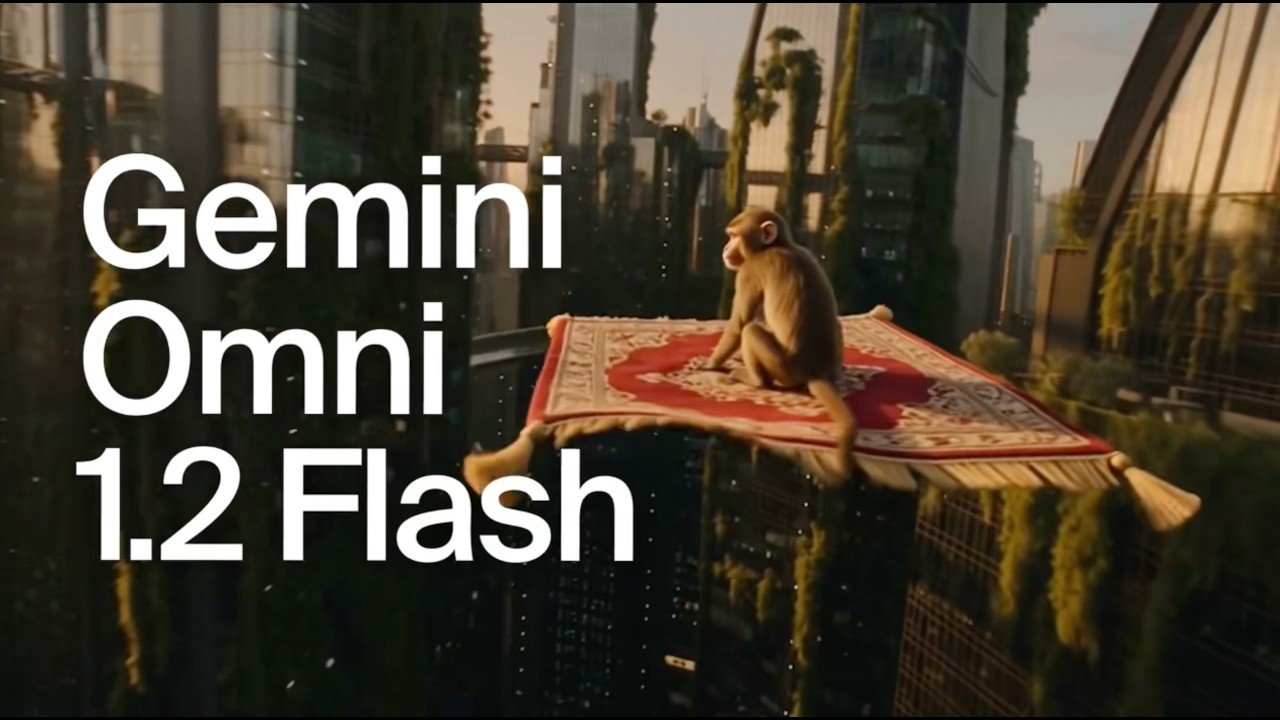
Gemini Omni 1.2 Flash
How Teams Put Claude Motion to Work
Take the reports, charts and product steps you already have, and let Claude Motion turn them into short animations you can play, export and share.
- Animations Built from Code, Not Stock FootageEvery clip starts from the Motion template and becomes an artifact: real code that animates the text, charts, shapes and images inside it.
- Tweak One Detail Without Redoing the RestBecause the output is code, editing a single word, number or timing beat leaves the rest of the clip exactly as it was.
- Your Clips Are Filed as Artifacts AutomaticallyEach animation is stored in the Artifacts tab the moment it is made, sitting alongside everything else you have created.
Getting Started with Claude Motion
Three quick steps are all it takes to produce your first animation.
What Claude Motion Can Do
Everything from the Motion template to MP4 export, covering the explainers, charts and walkthroughs teams rely on most.
Begin with the Motion Template
Open the Artifacts tab, pick the Motion template, and describe the animation you want to see.
Tell It Who Watches and for How Long
Mention the viewer, where the clip will play and how long it should run, and Claude Motion tunes the result accordingly.
Bring Your Own Report, Data or Images
Upload a deck, dataset or screenshot so the animation is built from your genuine source material.
Made for Explainers, Charts and Walkthroughs
Short clips are where it shines: all-hands updates, revenue visuals for leadership, and step-by-step onboarding videos.
Save the Finished Clip as MP4
Once the animation is done, use the Export option to download it as an MP4 file.
Private Until You Decide to Share
Every new clip is visible only to you, sharing happens when you choose, and admins control whether links can leave the organization.
Claude Motion: Frequently Asked Questions
Straight answers to the questions people ask most about Claude Motion.
Which plans include Claude Motion, and is it turned on by default?
It is in beta for Team and Enterprise plans. On Team it is switched on automatically, while on Enterprise an owner must enable it first.
How can owners enable or limit Claude Motion for a whole organization?
Admins control access under the Artifacts section of Organization settings, and Enterprise owners can further limit it to specific groups with custom roles.
Does Claude Motion create realistic footage or human video?
No. It animates text, charts, shapes and images through code, so no photorealistic or human footage is produced.
Where do my animations go once they are created?
Each one is kept in the Artifacts tab, which is also where you begin a fresh animation from the Motion template.
How do I download or share an animation when it is finished?
Use Export followed by MP4 to save the file. Until you open a clip and press Share, it remains visible only to you.
Do Claude Motion animations count against my plan limits?
Yes. They use the same limits as your other Claude activity, and heavier clips use more than a standard message.
Bring Your Ideas to Life with Claude Motion
Head to a chat or the Artifacts tab, pick the Motion template and describe the explainer, chart or walkthrough you want. Enterprise owners may need to turn it on first.