
Buzzy AI Video Generator
Type an idea, watch the Buzzy AI Video Generator build the clip, then refine lighting, characters and scene details with plain-language chat edits.
All Tools
Discover our comprehensive AI-powered animation toolkit
Muse Video
Seedance2.5
The Future of AI Video Is Here.
Seedance 2.0
The Future of AI Video Is Here.

Veo3.1
Create Stunning Videos with Veo3.1
Grok Video Generator
Create Videos from Text or Images with AI
MiniMax H3 video generator
MiniMax H3 AI Video Generator
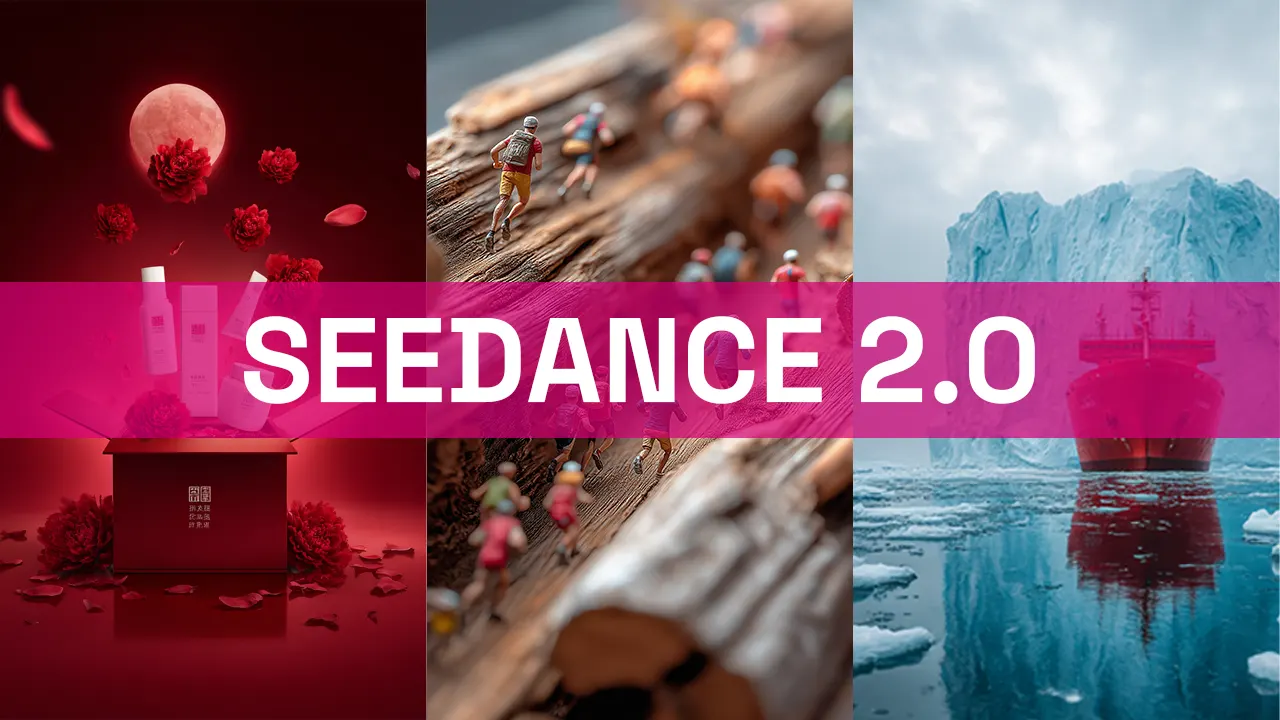
Seedance 2.0
The Future of AI Video Is Here.
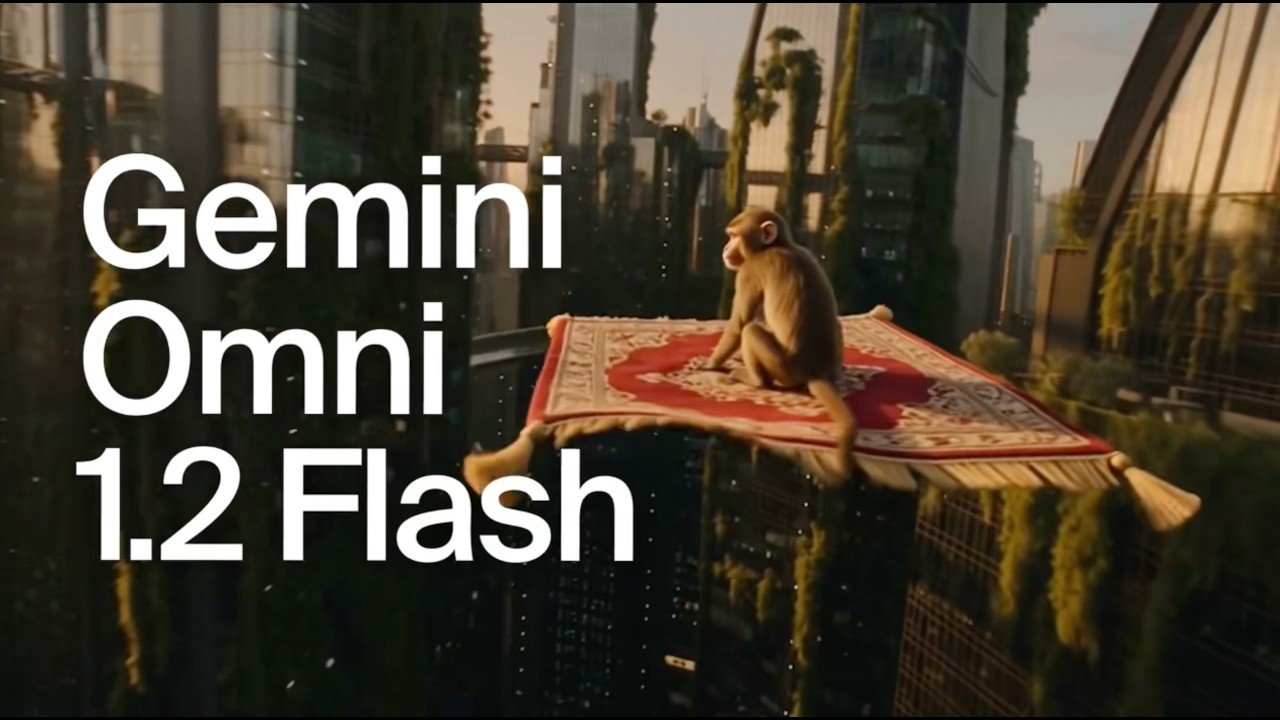
Gemini Omni 1.2 Flash
What the Buzzy AI Video Generator Brings to Your Workflow
A single connected workspace carries an idea from start to finish: the Buzzy AI Video Generator lets you sketch shots on a canvas, retouch clips through chat and choose among 70+ AI models.
- Fix a Clip Just by ChattingPoint out the detail that bothers you and ask Buzzy to replace it — a fresh backdrop, a swapped object — then review the new take closely, because every render drifts a little.
- One Endless Canvas for EverythingEvery piece stays in view: write the script and arrange nine storyboard views on a single surface, then push your chosen shot straight into video generation.
- 70+ AI Models Sitting Side by SideSeedance 2.5, Kling 4.0, Runway Gen 4 and dozens more are lined up together, so any project can be matched to the look it deserves.
From Sign-Up to Final Export Inside Buzzy
A rough idea moves through the Buzzy workspace in four moves until a finished clip is ready to hand off.
Inside the Buzzy AI Video Generator
Planning, chat-based retouching, model selection and connected assistants all live in the same shared workspace with the Buzzy AI Video Generator.
Creative Agent With Parallel Batch Runs
Give the Creative Agent your idea and it helps plan the production, runs generations in parallel and weighs several possible results before you commit to a shot.
Storyboards Built From Nine Frames
Before anything renders, a script takes shape across nine storyboard frames, each one opening a different angle so scenes can be planned with clarity.
MCP Server That Reaches Claude and Cursor
The MCP server connects Buzzy's creative tools to Claude and Cursor, letting your assistant open your Buzzy projects through your account without hopping between apps.
Long-Form Filmmaking on a Single Canvas
Full-length films live on one shared canvas where every scene stays easy to find, so each stage is handled without jumping between separate applications.
AI Image Generation Built In
Image generation runs beside the video tools, so the stills a scene needs can be ready before storyboarding and rendering ever start.
Reference Images That Hold the Look Together
An attached picture guides how a scene looks, though shots can still drift from it — check the key visual details before the clip ships.
Buzzy AI Video Generator: Your Questions Answered
Clear answers on credits, licensing, clip length, refunds and why results from the Buzzy AI Video Generator can differ each run.
Can I test Buzzy before paying for a plan?
A batch of starter credits lands as soon as your account exists, so the workspace can be explored first. How many clips those credits buy depends on the model you pick and what each run costs.
Are Buzzy videos licensed for client campaigns?
Buzzy's terms set the rules for commercial use, so read them first. Check the current license carefully before client work ships or paid ads go live.
What length can my finished video reach?
The model behind the project decides the runtime. If a story runs long, split it into separate shots on the canvas and stitch them together later in film production.
Do subscriptions to Buzzy come with a refund?
Under Buzzy's terms, subscription payments are nonrefundable. To avoid another charge, turn off auto renewal at least 24 hours before the billing period ends.
Will a chat edit alter the rest of the scene?
It can. Other parts of the shot may shift along with the edit, so compare every updated clip against the version you began with.
How do I choose the right model for a project?
Seedance 2.5, Kling 4.0, Runway Gen 4 and plenty of others are on hand, and trying a few makes it easier to match a model to the style you're after.
Start Your Next Video With the Buzzy AI Video Generator
Keep the clips that work, smooth out whatever feels off with quick chat edits and try fresh versions until the video is ready to publish.